Configuring a UIS Command
UIS command configuration typically takes place on a per-device basis using the remote device editor or by adding and configuring commands directly in a device template file. However, you can also access and configure remote devices via the UIS by double-clicking a remote device and clicking Device Configuration on the Device Information dialog box. Finally, advanced UIS command configuration also takes place via the MSS if you've configured a UIS command to execute on a set interval.
For more information, see the following subsections:
- To Configure a Command in the Remote Device Editor
- Using a Single Command for Multiple Facilities
- To Create a Single Command for Multiple Facilities
- Editing a Command
- To Edit a Command in the Remote Device Editor
- Deleting a Command
- To Delete a Command in the Remote Device Editor
To Configure a Command in the Remote Device Editor
Notes:
- The maximum length of the command parameter string for a Send UIS Command message is 1200 characters. CygNet Software will report if a UIS Command message exceeds the maximum parameter length of 1200 characters.
- If a UIS command is to be available for scheduling in the MSS, the command's Can Schedule property must be selected.
- Using CygNet Explorer, open the Device Definition Service (DDS).
- Open the remote device you want to add a UIS command to.
- Click the UIS Commands page.
- Click in the UIS Commands pane white space.
Note: If you highlight an existing command, that command is used as a template.
- Click Add.
- Enter a unique Name.
- Enter a Description.
- At the Facility field, click the Browse button and select a facility. Best practice is to have the default facility represent device data (board temperature, voltage, communication statistics, and so forth) and to have the linked facilities represent operational data. For more information, see Using a Single Command for Multiple Facilities below.
- Configure other properties as needed. For more information, see UIS Commands Page.
- Click Add. The Edit Command Component dialog box opens.
- At the Component Type field, click the chooser and select the component type you want to add to your UIS command.
- Click Choose Group to choose the data group this component applies to.
- Double-click the correct Data Group Type and Ordinal combination from the list of available data group types.
- If Parameters exist for the selected Data Group Type and Ordinal combination, they appear in the Parameters field. Enter a Value if needed. For information about EIE-specific UIS command component parameters, see topics called UIS Command Component Parameters within their respective Remote Devices subsection.
- Click OK.
- Repeat steps 9 - 14 for each additional command component you want to add.
- When you are finished adding command components, click OK on the UIS Commands Properties dialog box.
- Click Apply on the UIS Commands dialog box to save all changes.
Using a Single Command for Multiple Facilities
UIS commands can be defined at the remote device facility or linked facility level. Being able to define a UIS command at the linked facility level enables the application of the settings of one UIS command to multiple facilities, a useful and necessary feature of a templated environment. The combination of the command name and facility ID used to define a UIS command must be unique.
To Create a Single Command for Multiple Facilities
- Add and configure a command in the remote device editor in the standard way.
- If you want to duplicate the command for use with other facilities, highlight the command in the UIS Commands field under the UIS Commands page.
- Click Add.
- At the Facility field, click the Browse button and select a different facility.
- When you are finished adding new commands, click OK on the UIS Commands Properties dialog box.
- Click Apply on the UIS Commands dialog box to save all changes.
Note: These commands are treated as a single command in the Comm Queue and the response processing queue. To treat these UIS commands as individual entities on the queues, see the SPLIT_MULTIFAC_COMMANDS keyword in the UIS Configuration File Keywords topic.
Example
There are three commands named ANALOG. The component of each command is a different analog input data group, each of which is used to collect analog input data for a particular meter, and each meter is represented by a different facility. That is why each command is configured for a different facility. When the command is issued for EMERSON_FB_107_LQM1, analog input 01 is set. When it is issued for EMERSON_FB_107_M1, analog input 02 is set. And so forth.
If a command applies to an entire remote device facility, such as a status or basic poll command, it can be defined for the remote device facility alone. The STATUS command in the image below is configured for EMERSON_FB_107, which is the remote device facility, making the STATUS command valid for all facilities, not just EMERSON_FB_107.
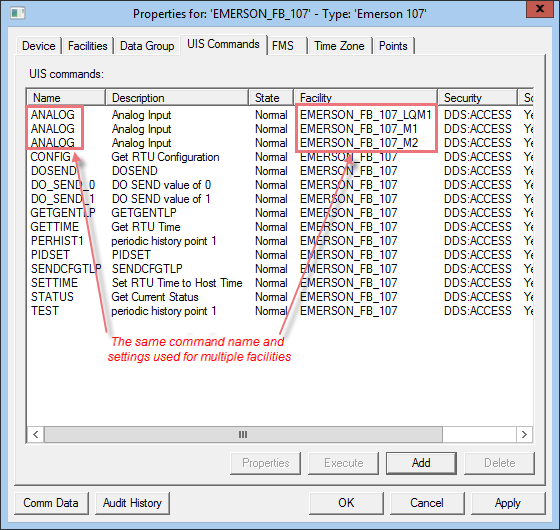
|
| Single UIS Command Used for Multiple Facilities |
Editing a Command
The following procedure explains how to edit a command in the remote device editor.
To Edit a Command in the Remote Device Editor
- Using CygNet Explorer, open the Device Definition Service (DDS).
- Open the remote device EIE you want to edit a UIS command for.
- Click the UIS Commands page.
- Double-click the UIS command you want to edit.
- Edit the UIS command property sheet to suit your needs.
- Highlight a command component in the UIS Command Components field, if you want to edit command components.
- Click Edit.
- Edit Component Type and other properties to suit your needs.
- Click OK.
- When you are finished editing command properties and components, click OK on the UIS Commands Properties dialog box.
- Click Apply on the UIS Commands dialog box to save all changes.
Deleting a Command
The following procedure explains how to delete a command in the remote device editor.
To Delete a Command in the Remote Device Editor
- Using CygNet Explorer, open the Device Definition Service (DDS).
- Open the remote device you want to delete a UIS command from.
- Click the UIS Commands page.
- Highlight the UIS command you want to delete.
- Click Delete.
- Click OK.
- Click Apply on the UIS Commands dialog box to save all changes.


